Showing posts with label MS-Office. Show all posts
Showing posts with label MS-Office. Show all posts
2012 top ten posts on the MS Office apps
 For all the Microsoft Office enthusiasts, here are the top 10 compilations regarding last year:
Enjoy!
New Office Web Apps are Out

Microsoft’s new suite of Web based Office application is out of the preview phase where you you could opt in, and has rolled out to everyone. The main aspects improved by this release are the improved authoring features present on the Ribbon toolbar, the higher fidelity of the web authored documents when viewed on the desktop, the collaboration features such as simultaneous editing and commenting, and the adaptive touch interface support.
Additionally to these improvements, the mobile interface has also been renewed to provide a better experience to non-Windows Phone devices, like iOS and Android.
You can find more about this new release on this post.
MS-Office
,
skydrive
,
web
,
web browser
Office 2013 Preview training content available
Office 2013 Preview training content available:
The Office team has created lots of great training content to help users learn about the new features in Office Customer Preview and Office 365.
Via Office IT Pro

The Office team has created lots of great training content to help users learn about the new features in Office Customer Preview and Office 365.
Via Office IT Pro
Outlook Hotmail connector stopped working with switch to outlook.com

When you switch from a Hotmail or Windows Live address to a new outlook.com address your previous address becomes an alias.
Here's what you have to do on this forum thread: I switched from Hotmail to Outlook.com, why doesn’t Outlook Hotmail Connector work?
New Microsoft Office Web Apps Preview
Following this post here, about experiencing modern Office with SkyDrive, namely the improved features driven by the new Office 365 Home Premium, it’s public that you can opt-in by following this: Sign in using this special link and create a new document.
After entering your SkyDrive, you get the following notification:
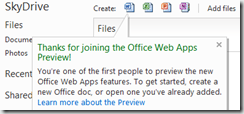 Create a new document and check out the improvements as well as the new features on these aspects:
After entering your SkyDrive, you get the following notification:

- improved authoring
- Touch support
- Document collaboration
Manually placing pending OneNote updates to SkyDrive
I use Microsoft’s Office OneNote from Office 2010 for the all-purpose note taking that goes on a daily basis. Some time ago, changes on the workplace corporate network blocked the Skydrive sync feature.
On a careless fashion, I kept taking notes from tasks and e-mails and the pending updates stacked up. Final picture: ended up with a really stuffed set of notes missing from the online service.
No matter how I tried to start the process, the merge between the notes always failed on the Windows Live ID login step.
The web browser view on Skydrive presents the notebook as a single item, but OneNote stores the different sections of a notebook on separate “.one” files. For the whole notebook there is a table of contents “.onetoc2” file. So the potential solution was to replace the Skydrive files with the local backup files that had all the recent updates.
The solution wasn’t feasible on the Web browser Skydrive functionality, as it presents the notebook as a single item. It was a four step process:
Backup your online copy to a local folder. Open the notebook on OneNote.
To get the local backup of your skydrive files, it should be on a folder path like “C:\Users\[Your user name]\AppData\Local\Microsoft\OneNote\14.0\Backup”. Replace [your user name] with the real deal. Open the notebook on OneNote.
With both versions of the notebook open, check if there are missing notes and copy/paste them into the copy with the least updates missing.
Finally, copy the whole “.one” files from the updated version, replacing the ones on Skydrive, using Windows Explorer.
HTH.
On a careless fashion, I kept taking notes from tasks and e-mails and the pending updates stacked up. Final picture: ended up with a really stuffed set of notes missing from the online service.
No matter how I tried to start the process, the merge between the notes always failed on the Windows Live ID login step.
The web browser view on Skydrive presents the notebook as a single item, but OneNote stores the different sections of a notebook on separate “.one” files. For the whole notebook there is a table of contents “.onetoc2” file. So the potential solution was to replace the Skydrive files with the local backup files that had all the recent updates.
The solution wasn’t feasible on the Web browser Skydrive functionality, as it presents the notebook as a single item. It was a four step process:
- Get Skydrive to open on Windows Explorer.
- Backup your online notebook to a local folder and open it.
- Open the files from the local OneNote backup folder.
- Copy the local files over the old ones.
Backup your online copy to a local folder. Open the notebook on OneNote.
To get the local backup of your skydrive files, it should be on a folder path like “C:\Users\[Your user name]\AppData\Local\Microsoft\OneNote\14.0\Backup”. Replace [your user name] with the real deal. Open the notebook on OneNote.
With both versions of the notebook open, check if there are missing notes and copy/paste them into the copy with the least updates missing.
Finally, copy the whole “.one” files from the updated version, replacing the ones on Skydrive, using Windows Explorer.
HTH.
Subscribe to:
Posts
(
Atom
)