Free eBook - Rethinking Enterprise Storage: A Hybrid Cloud Model
Microsoft Press has released Rethinking Enterprise Storage: A Hybrid Cloud Model, by Marc Farley, as a free download. You can download the PDF version of this book here.

The book includes seven chapters:

The book includes seven chapters:
- Rethinking enterprise storage
- Leapfrogging backup with cloud snapshots
- Accelerating and broadening disaster recovery protection
- Taming the capacity monster
- Archiving data with the hybrid cloud
- Putting all the pieces together
- Imagining the possibilities with hybrid cloud storage
PSMSSQL–Github Repository for MSSQL scripts in Powershell
 This post is to share with you a personal project with some work mates. PSMSSQL. This Github repository has scripts done in Powershell to interact with MSSQL databases.
 It uses SQL Server Management Objects (SMO) to connect and interact with the remote database instances. You can read further on SMO at this URL: http://msdn.microsoft.com/en-us//library/ms162169.aspx
The first script submitted, "CompareMSSQLDB.ps1", takes the file "servers.txt" with a pair of server/database per line and compares the database identified on the first line against all other databases on the remaining lines.
Happy coding!
github
,
mssql
,
Powershell
,
windows
Rapidly test your website for cross browser compatibility
Earlier this year I posted about modern.IE, a tool meant to make it easier to test sites for Internet Explorer.

You can check out the live output here: http://www.browserstack.com/screenshots/5a6283df1308512082589290b4add4dcd6b9b35f
To run the tool on any site of your liking, visit BrowserStack.
With the release of Internet Explorer 11 Developer Preview for Windows 7, Microsoft has also updated modern.IE. The three new enhancements are:
About this last one, it comes from BrowserStack and it’s a really easy and useful tool to quickly assess the look of your site. Running it on this site gives the following output:- Limited offer: 25% off Parallels Desktop 8 virtualization for Mac.
- New virtual machines for testing IE11 on Windows 8.1 and Windows 7.
- A new, free screenshot tool that lets you see how a site looks across browsers and devices.

You can check out the live output here: http://www.browserstack.com/screenshots/5a6283df1308512082589290b4add4dcd6b9b35f
To run the tool on any site of your liking, visit BrowserStack.
ie
,
microsoft
,
Tools
,
web
,
web browser
All-in-One SharePoint 2003 Portal Server is an unsupported topology
Microsoft’s Sharepoint Portal Server 2003 is an out-dated technology and very few legacy sites should exist. However, since the problem of the unsupported topology is a dead end thread on all sites I’ve been searching online, here is my solution to the problem.
Microsoft article “Description of an alternative topology for SharePoint Portal Server 2003” doesn’t include the all-in-one scenario that doesn’t use the MSSQL engine coming with the portal setup.
To install a regular MSSQL instance on the same machine that you are installing Sharepoint 2003, you simply have to use an MSSQL server alias to call the server by a different name:

This tricks Sharepoint 2003 into thinking it’s talking to a remote database server. When you setup up the farm, use the alias instead of the server name to perform the gimmick.
Hope this still helps someone.
Microsoft article “Description of an alternative topology for SharePoint Portal Server 2003” doesn’t include the all-in-one scenario that doesn’t use the MSSQL engine coming with the portal setup.
To install a regular MSSQL instance on the same machine that you are installing Sharepoint 2003, you simply have to use an MSSQL server alias to call the server by a different name:

This tricks Sharepoint 2003 into thinking it’s talking to a remote database server. When you setup up the farm, use the alias instead of the server name to perform the gimmick.
Hope this still helps someone.
Free eBooks: Python, JavaScript and UI Design

Working on the application development scene, it’s hard to keep up with everything new. Every bit of help counts. Great resources are the eBooks you can find, for free, online on the Web. The books you can find in PDF format are great because you can take them with you anywhere. The ones that are available to view online are also great because you get any updates made on the subject. On this post I leave everyone a small set of links where you can find eBook compilations.
The first one comes from Speck boy Design Magazine and it’s mostly about User Interface design. For instance, the Mobile Web Design Best Practices by Mobify “is a handy mobile web design guide with over 50 tips that will help you build amazing mobile websites”. You can visit the Specky boy eBook compilation here: http://speckyboy.com/2013/06/10/free-ebooks-for-designers-and-developers/
The next eBook compilation is from Revolunet. It’s all about the Python programming language. You have the classic “Dive into Python” and a whole bunch of other interesting books. You can find them all at this Web page: http://pythonbooks.revolunet.com/
Finally, this list wouldn’t be complete without the emerging trend on multi-platform application development: javaScript. Here you have subjects for all tastes: Node.js, MongoDB, Windows 8, and so on. Get them all on this page: http://jsbooks.revolunet.com/
Happy readings!
Photo Credit: Mark J P via Compfight cc
Install Virtualbox on Windows 8 causes a BSOD
Trying to install Virtualbox on my latest Windows 8 machine, the result was always the same, a screen like the one below:

The error message is irrelevant, if you google for it you’ll get mostly useless rants. The cause for my problem as well as the solution was to enable hardware virtualization support on the BIOS setup:

Hope this helps someone.

The error message is irrelevant, if you google for it you’ll get mostly useless rants. The cause for my problem as well as the solution was to enable hardware virtualization support on the BIOS setup:

Hope this helps someone.
bsod
,
error
,
microsoft
,
virtualbox
,
virtualization
,
windows
Developing a Web Site with Windows Azure–Part II
After having the setup needed to start developing code, keep track of it’s changes and deploy the resulting application, all resorting to Microsoft Cloud resources, it’s time to start building the proof of concept.
So, open up Web Matrix and from the startup screen choose “New > Template Gallery”:

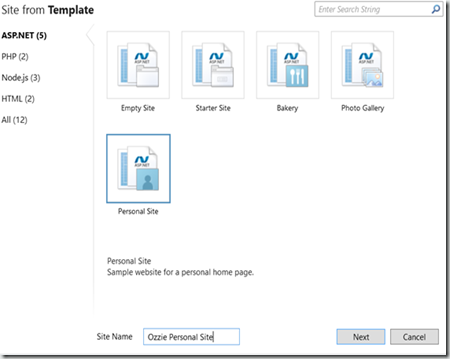
On the template selection, choose “Personal Site” and give it a name of your liking:
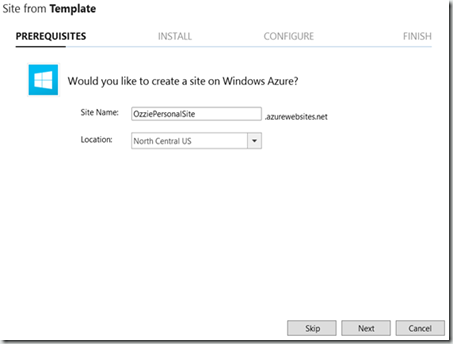
You can create a site on Windows Azure where you’ll later deploy the web site on, if you skip this you can do it later at deploy time:
After the template has completed the installation and configuration steps, you can start by adding it to source control, using the “Use TFS” on the source control section of the ribbon:

Insert your Team Foundation Service URL and press connect. Afterwards choose the project where you’d like to keep version control of you web application:

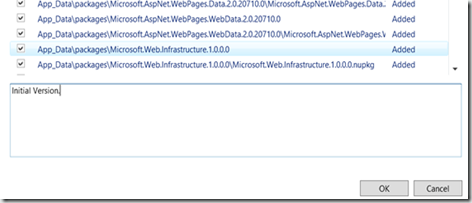
Check in all the files of the initial version of your site (basically as-is from the template installation):
Afterwards, you might want to check on the TFS Web portal if the changeset has been successfully checked in:

Continue to edit the personal site, following Microsoft’s instructions on how to place your personal data into to web pages. Test it on the local machine, here’s how mine looks like:

If all is well, check in your changes to TFS once again. Next, let’s publish the site onto Windows Azure:
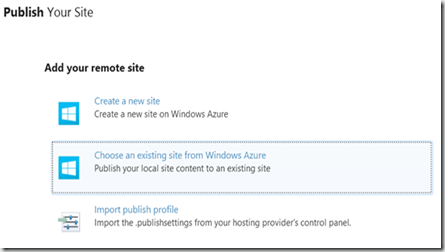
Pick the site you created upon starting, or create one now:

Confirm the publishing operation, if all goes well you’re done:

The site is live on Microsoft’s cloud platform. The URL of my testing site is: http://ozziepersonalsite.azurewebsites.net/
Happy coding!
So, open up Web Matrix and from the startup screen choose “New > Template Gallery”:

On the template selection, choose “Personal Site” and give it a name of your liking:

You can create a site on Windows Azure where you’ll later deploy the web site on, if you skip this you can do it later at deploy time:

After the template has completed the installation and configuration steps, you can start by adding it to source control, using the “Use TFS” on the source control section of the ribbon:

Insert your Team Foundation Service URL and press connect. Afterwards choose the project where you’d like to keep version control of you web application:

Check in all the files of the initial version of your site (basically as-is from the template installation):

Afterwards, you might want to check on the TFS Web portal if the changeset has been successfully checked in:

Continue to edit the personal site, following Microsoft’s instructions on how to place your personal data into to web pages. Test it on the local machine, here’s how mine looks like:

If all is well, check in your changes to TFS once again. Next, let’s publish the site onto Windows Azure:

Pick the site you created upon starting, or create one now:

Confirm the publishing operation, if all goes well you’re done:

The site is live on Microsoft’s cloud platform. The URL of my testing site is: http://ozziepersonalsite.azurewebsites.net/
Happy coding!
Subscribe to:
Comments
(
Atom
)